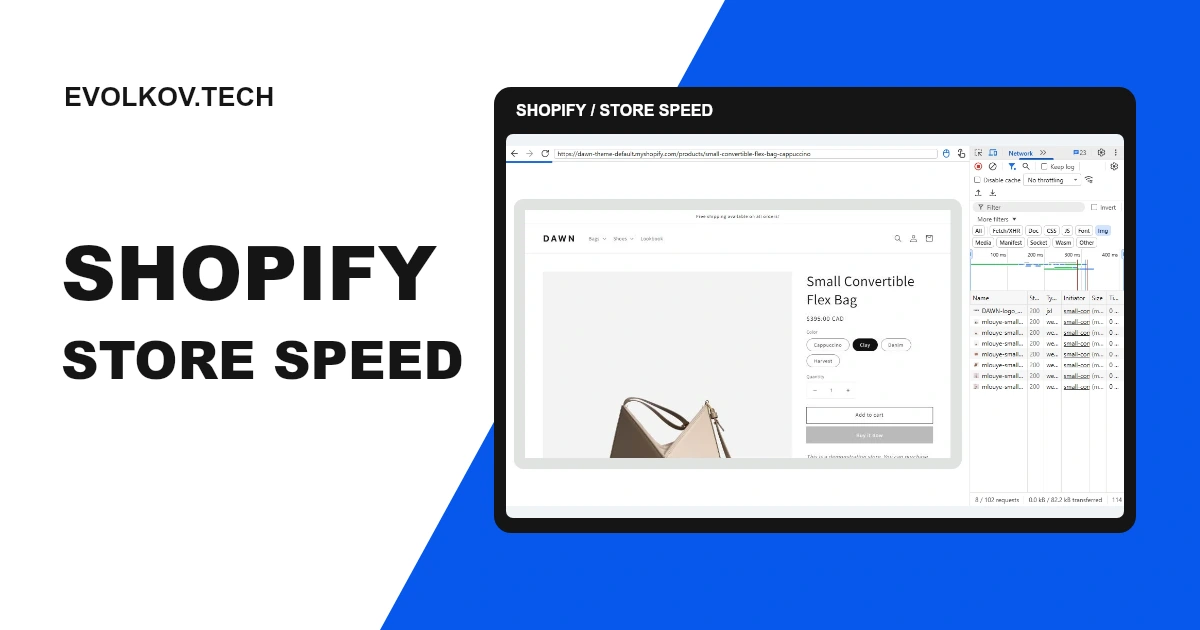
Start where a shopper lands
Suppose your ad leads to a product page for a hiking backpack. On your laptop it looks ready. On a phone you see the title, then a white rectangle where the photo belongs, and the purchase button moves down when a review strip arrives. There are two separate things to investigate. The product image appears late, and a block changes the layout. Each can happen even when the rest of the site feels quick.
Copy the complete public product URL, including any variant or market path that affects what a shopper sees. Remove tracking parameters for a clean baseline unless they change the landing experience you are investigating. If customers land on a collection or a custom page, use that URL. Keep a second page as a control. A collection grid and a product media gallery download different assets. A fix that makes the home page lighter may leave those templates unchanged.
Open the address on a phone where you are signed out of Shopify. Check which product image appears first, how the variant selector responds, and whether the first purchase button moves during loading. A screen recording helps when a shift lasts for a fraction of a second. Record the actual steps as well as the impression. “After choosing blue, the preview takes three seconds to change” gives you a test you can repeat.
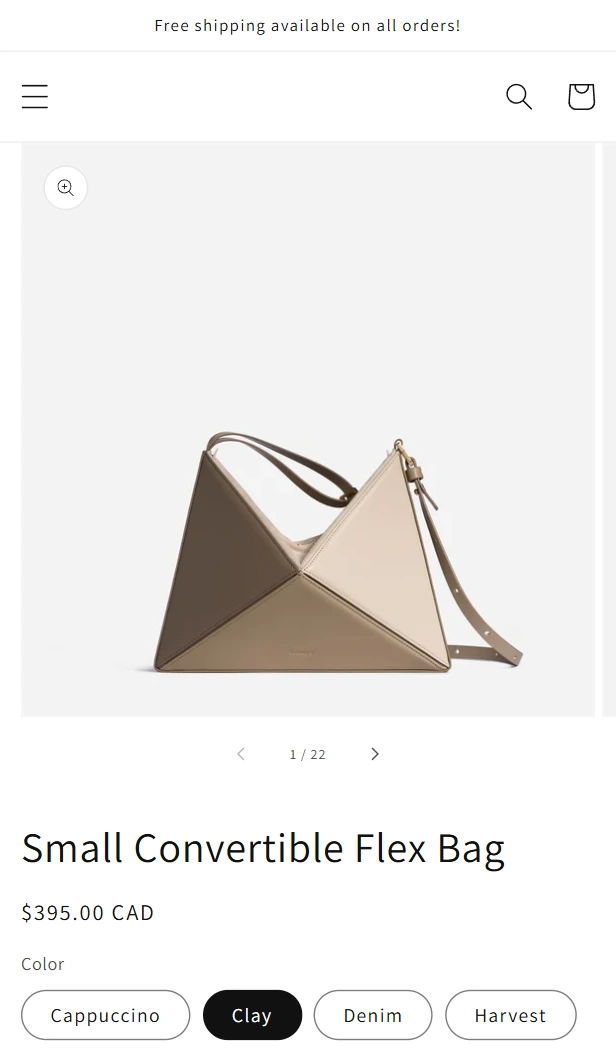
You can practise on the public Dawn demo product page shown here. Open it on your phone and locate the lead product photo before scrolling. Then open the same address on your computer and use the steps below to find the image request. The screenshot shows what the storefront displays at a mobile width.
Take a baseline in PageSpeed Insights
- Open PageSpeed Insights, paste the public URL, and select Analyze. Wait for the report to finish.
- Select Mobile. At the top, identify whether Google has data for this URL or displays data for the origin, which covers the whole site. If there is no real-user data, continue with the Lighthouse section below.
- Scroll to the performance diagnostics. Save the URL, device profile, performance score, LCP, CLS, and TBT. Add the test date and the theme or version you are examining.
- Repeat the mobile run twice more. Put the three LCP results in order and take the middle number. Do the same for TBT if you plan to change scripts. Save each result so you can see the spread.
Here is how to record an example. If LCP comes back at 3.2, 3.5, and 5.1 seconds, the median is 3.5 seconds. The third run is worth keeping. It shows how much the results varied under nominally identical conditions. Open the report for the slowest run and look for an unusual delay on the page or a request that timed out. Do this before paying for a new theme because one run was poor. This is example arithmetic and gives you the method for your own reports.
Real-user data in PageSpeed Insights describes a rolling 28-day period. Lab data comes from a controlled Lighthouse run that you can repeat after a change. Use real-user LCP, INP, and CLS to see how visitors experience the store over time. Use the details from Lighthouse to decide what to investigate today. Google’s good thresholds for real-user data at the 75th percentile are LCP up to 2.5 seconds, INP up to 200 milliseconds, and CLS up to 0.1. Lighthouse reports TBT because it can measure main-thread blocking while loading the page. Actual visitors’ INP captures interaction latency across their visits. Google’s PageSpeed Insights guide and Web Vitals thresholds.
Read a measured Dawn example
On 23 November 2026, one Lighthouse 13.6 mobile run on the public Dawn product page recorded LCP of 3.4 seconds, TBT of 80 milliseconds and CLS of 0.001. The LCP request discovery insight identified a gallery photo displayed at 380 CSS pixels wide. The initial HTML contained its address, the element used loading="lazy", and Lighthouse found no high-priority hint. Open the measurement and audit record alongside your own report. This single run identifies what to test in a theme copy. Three comparable runs on each version would be needed to estimate an improvement. What Chrome tests for LCP request discovery.
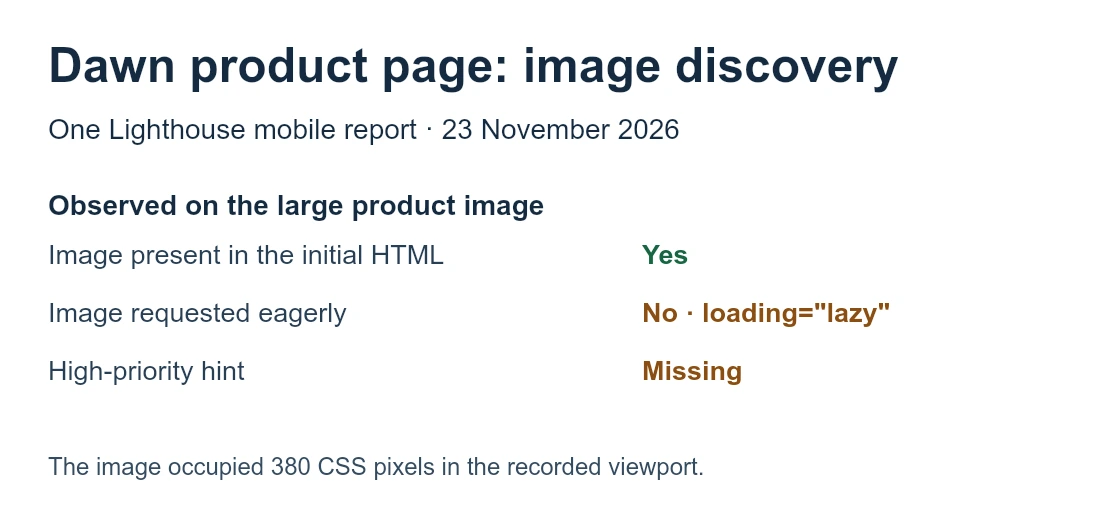
Confirm that the measured photo is the first one shoppers see on mobile. Expand LCP breakdown or LCP request discovery and find the element. Match it to a request in Network using Preview. If the first visible photo is lazy-loaded, try loading just that photo eagerly in the theme copy. A text LCP points you towards checking the document, styles or fonts. If the image already starts early, open Timing and check which phase is taking the time.
Prepare a safe copy of the theme
In Shopify admin on a computer, open Online Store → Themes. Open the actions menu beside the current theme and choose Duplicate. Give the copy a name you can recognise later, such as “Product image test.” Use its preview to try changes. If you are checking a private preview, use Chrome’s Network or Lighthouse panel in your own browser, where you can open the preview. Save a baseline for the preview as well. A preview includes differences such as preview controls, so compare preview to preview until you are ready to publish. Shopify’s theme duplication instructions.
Write down what your copy covers. It protects the theme configuration and templates. Store-level app settings, analytics pixels and consent choices may be shared by the live store. If changing a switch seems to affect both themes, pause and check with the app provider. Keep a note of every switch and the previous value before testing. When you want to compare a completely different theme, configure the same product, media, sections and essential apps in its preview. A lightly configured demo theme loads a different set of features.
Check the first product image in Chrome
On desktop Chrome, right-click the product page and select Inspect. This opens DevTools, a panel for seeing what the browser downloads and renders. Select Network, or use the double-arrow menu beside the other tabs. Tick Disable cache while DevTools is open, then reload the page. Choose the Img filter. Use the Size column to compare transfers and the horizontal Waterfall bars to see when files start loading. Click a request and use Preview to check that it belongs to the main photo. To inspect the displayed image’s HTML, right-click the photo itself and choose Inspect. Chrome’s illustrated Network walkthrough.
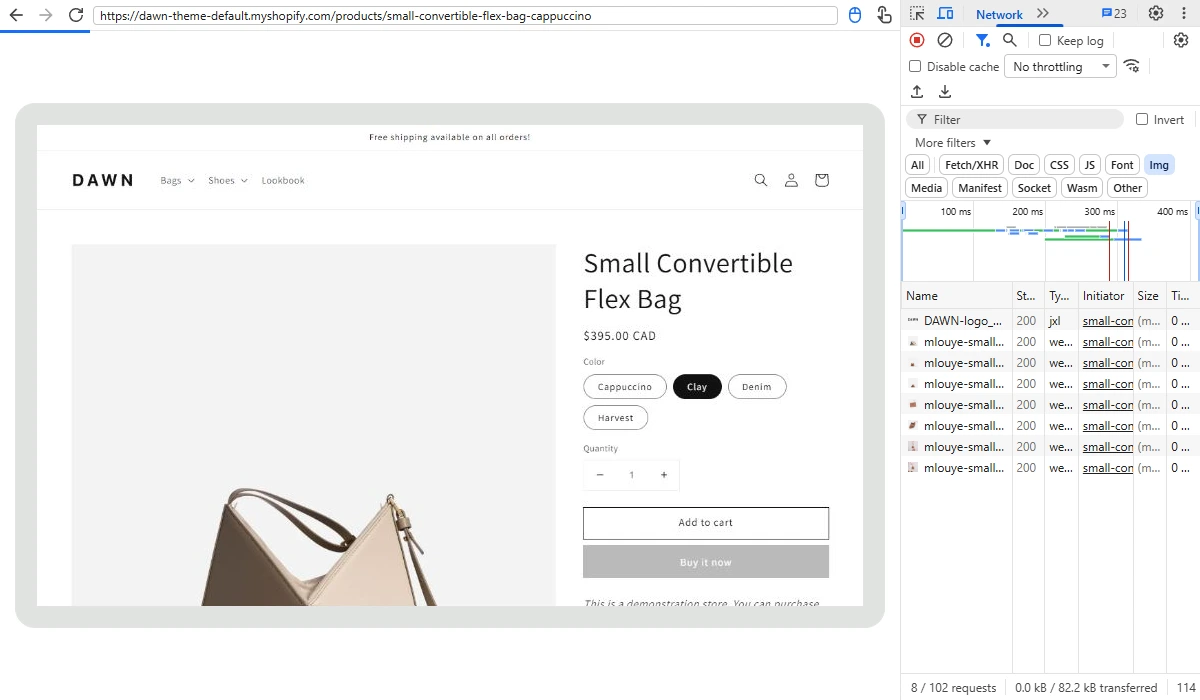
The desktop screenshot shows how to recognise the image rows on the Dawn product page. It was taken with the browser cache available. Tick Disable cache for a separate first-load check and give the network table more room if the transfer sizes are truncated.
An image can arrive late because the file is heavy or because the browser discovers it late. In the first case, its request starts promptly and continues for a long time. Test a smaller image variant and compare the bytes received. In the second case, the request bar starts after scripts or a carousel have already run. Test how the photo is exposed to the browser. Ask a developer to check for lazy loading on the first visible product image, or for code that inserts the first photo after the page starts. A change to image quality alone may have little effect when the request still waits for a script.
In Shopify, a theme can use Shopify’s image size and responsive-image helpers to offer several versions to the browser. Keep a source large enough for product inspection and zoom, then check what the browser receives when the photo is only 360 CSS pixels wide. On a device with a pixel ratio of 2, a 720-pixel version can be a useful starting point for that slot. Check stitching, print and colour details on a real phone before committing. Shopify’s image CDN can select supported modern formats. Check the response type and transfer in DevTools on the actual page instead of assuming the file extension tells you what arrived. Shopify theme performance guidance and Google’s guide to LCP request discovery.
Change one piece of the product page
Limit what plays before the shopper asks
In the theme editor, open the product template used by the test item. Note whether the first screen contains a large autoplaying video, an animated banner, or a carousel that starts loading several images together. A useful first experiment is to keep a still image as the hero and move the demonstration lower, with a play button and a poster. Watch a reload in Network with the Media filter. Check whether the video transfers significant data before playback and whether the opening image now starts earlier.
When the clip is essential, export a short version at a size suitable for its display. An MP4 with H.264 is a practical compatibility option. Compare two target bitrates on the actual phone. Keep enough detail for the product, especially when motion explains assembly or use. Lower resolution can work for small clips, while readable text or details can justify a higher one. Remove an unused audio track and consider captions when sound supplies meaningful information. Set the video area’s dimensions or an aspect ratio so the page stays stable as media loads.
Decide which apps belong on that template
List the app embeds and blocks visible on your test page. For each, write what it does, when a shopper needs it, and how you would notice a failure. A bundle picker may alter the eventual price. A review block may provide the evidence someone needs before buying. A chat launcher can often wait until the shopper requests it. Check owners and settings before changing any tool whose first-load behavior is important for analytics, consent, localisation, or inventory.
In the duplicate theme, open the editor’s App embeds area and the product template’s app blocks. Turn off one optional embed in the copy when the setting supports that scope, or ask the app provider how to disable its storefront code in a test. Reload with Network open and see whether the app’s resources still appear. If the app is gone yet the browser contacts its domain, record the request name, initiator and page URL. An old custom snippet can survive an uninstall. Have a developer trace it to its source and verify whether the same snippet is shared by another feature. Shopify’s guidance on improving storefront performance.
Treat JavaScript and CSS changes as a separate developer round. A script marked defer downloads without blocking HTML parsing and executes after parsing. Dependencies and tracking behavior still need testing. A widget that runs a large amount of code immediately on the first interaction can make the click feel slow. Delaying below-screen styles can help when their content is truly optional at startup. Keep styles for the header, gallery, and purchase controls available at first render. For fonts, try fewer weights, check that text appears during font download, and watch for wrapping or layout movement when the custom font replaces the fallback. Replace a whole loaded icon font with a few SVG icons only after confirming what the rest of the theme uses.
Retest and check the purchase path
Verify a single change to the first photo
If the theme exposes an option for how the first product image loads, use it in the duplicate theme. Otherwise, ask a developer to find where the product template outputs that exact image. Shopify’s image_tag filter accepts a loading: 'eager' attribute. Keep the existing srcset, sizes, dimensions, alternative text and variant behavior. Leave off-screen gallery images eligible for lazy loading. When variants add separate image elements, apply the condition to what shoppers actually see in the initial state. Test the high-priority hint separately after you verify the loading change. Shopify’s image_tag reference.
Open the same product variant in the preview. Select its first visible photo in Elements and confirm the resulting loading setting. Open Network, check Disable cache and reload. The first request should start earlier, the photo should load once at the intended size, and the other gallery images should avoid crowding its request. Compare three Lighthouse runs per version. If the starting time changes but LCP stays within the old run-to-run variation, revert the experiment and look at the longest phase in LCP breakdown. The cause might be elsewhere.
If someone else will make the change, send the preview link, exact product variant, LCP image name and the original three runs. A useful acceptance check is an earlier request, an LCP median that improves beyond routine variation, and a working variant selector, gallery zoom and cart. A developer can reproduce that test on your theme using the same evidence.
Use the same page and test settings that you recorded for your baseline. Repeat three comparable runs after the change. If the median moved from 3.5 to 2.8 seconds but two runs still overlap the baseline range, the improvement deserves another batch. Check that the main image downloads less data or is requested earlier. These details show whether your change contributed to the result. A second URL helps you catch a side effect on a collection or another template.
On a phone, choose at least two variants, use the gallery and zoom, add to cart, change quantity, and reach checkout in the intended language and currency. Where applicable, try a bundle, a discount, and each relevant consent choice. Verify analytics against a test that your team permits. Compare the flow to the live theme before publishing. After release, rerun the public URL and watch Shopify’s real-user reports as their data accumulates. If the test reveals a broken price or purchase action, keep the working live theme and continue in the copy. Shopify web performance reports.
Write down what changed
Keep one row per experiment with page URL, theme version, exact change, three runs on each side, and a functional result. Leave a short note about device and cache conditions. A team can then reopen the same page and distinguish a successful image change from a shift introduced by a later banner. If your results bounce around, follow the Lighthouse before-and-after comparison guide.
Start with the issue that prevents people from seeing or buying the product. Sometimes one late hero image is responsible. Sometimes the option selector spends too long waiting for a third-party script. When the purchase path works on a real phone and the measured bottleneck is resolved, place further optimisation alongside conversion and merchandising work. The results should help a customer use the store and give your team enough evidence to decide what is worth doing next.
Next steps: choosing an image format and size and diagnosing a low mobile PageSpeed score.
Need help with your website?
Development and SEO services →