Find CRM contact duplicates by source ID, email, and phone
A contact may arrive from a form, a billing system, or an import. Two coworkers can share a switchboard, and separate systems can issue the same external ID for different people. Agree on who assigns identifiers and which fields require manual review.
If deploying in a particular CRM, check its documentation. Salesforce separates the match condition from the action on a match. HubSpot describes separate deduplication behavior for contacts, companies, and imports. The fixture implements one policy for a custom CRM. Salesforce duplicate rules, HubSpot deduplication.
Reproduce the CRM deduplication dry run
Use the four existing contacts and seven incoming rows from the evidence file. Compare the incoming rows against an unchanged copy of the contact list. Lowercasing email in this example is only for candidate discovery. Keep the original address. The sample phones are already in international format. For operational data, specify the region when parsing domestic numbers and retain extensions separately.
Seven checks and their decisions
| Case | Decision | Candidates |
|---|---|---|
| Same source and ID | Reuse existing ID | c-101 |
| Shared phone | Review manually | c-102, c-103 |
| Matching email | Review manually | c-104 |
| Same ID, different source | No candidate | 0 |
| Conflict under same source ID | Review manually | c-101 |
| Missing identifiers | No candidate | 0 |
| Plus-addressed email | No candidate | 0 |
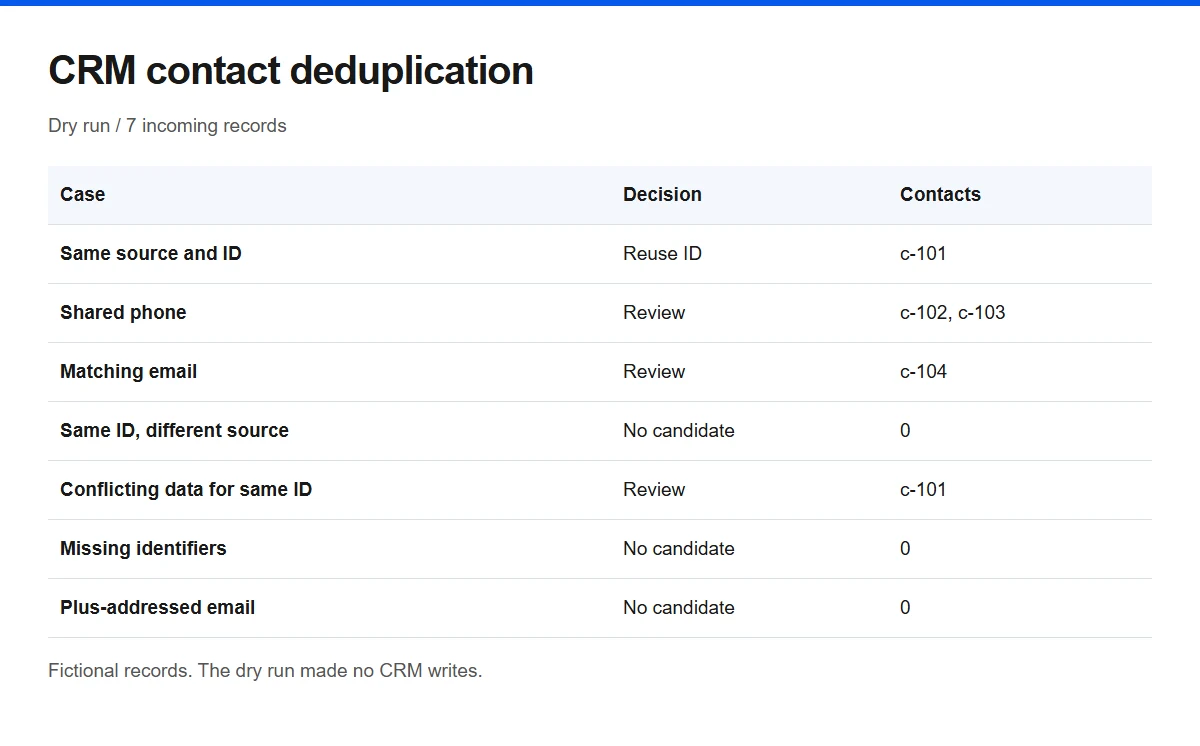
Contacts c-102 and c-103 share a phone number, so the incoming row has two possible matches. An incoming Alex@EXAMPLE.NET produces one candidate after normalization but still requires review. A matching source-scoped ID with a conflicting email and organization also goes to review. The sample preserves the plus suffix in an address. Removing it across all domains could create an unverified match.
Apply only the reviewed decisions
reuse recommends linking the import to a known ID and checking the fields you allow it to update. It neither merges records nor overwrites fields. review queues the decision with its reason and candidate IDs. no-match means the rule found no candidate. If phone and email are missing, request more information or defer the action.
Log the source, external ID, candidate IDs, rule version, and reason. For a reviewed row, record the reviewer and resulting action. Full emails, phone numbers, and notes do not have to go into a widely accessible decision log.
{
  "source": "web",
  "externalId": "A-18",
  "decision": "review",
  "ids": [
    "c-102",
    "c-103"
  ],
  "reason": "phone-candidates"
}
Verify relationships before a bulk change
Before application, follow the CRM migration checklist. Keep a source-to-target ID map and reconcile relationships. If two records together have three distinct deals, a permitted merge must still leave all three deals linked to the surviving contact. Check tasks, notes, and consent history separately. Send consent conflicts to review before any bulk action.
A retried form submission and a renewed inquiry are separate cases. The first is recognized by an event ID. The second may be a new deal or request tied to an existing person. Rerun the staged import with the same events and verify that repeated events create no extra records while distinct inquiries remain visible.
Put the rules and expected fixture results into the CRM requirements. Estimate cleanup separately in the custom CRM development budget. Importing identifiers, building the review queue, and restoring associations are different pieces of work.
FAQ
Can I automatically merge rows with the same email?
If the inbox can be shared, treat the match as a candidate. Document which supporting fields the reviewer needs, and authorize automatic rules per source.
How do I verify an updated match rule?
Run both versions against the same control rows and compare decisions row by row. Inspect every row that moved from manual review into an automatic path.
Need help with your website?
Development and SEO services →