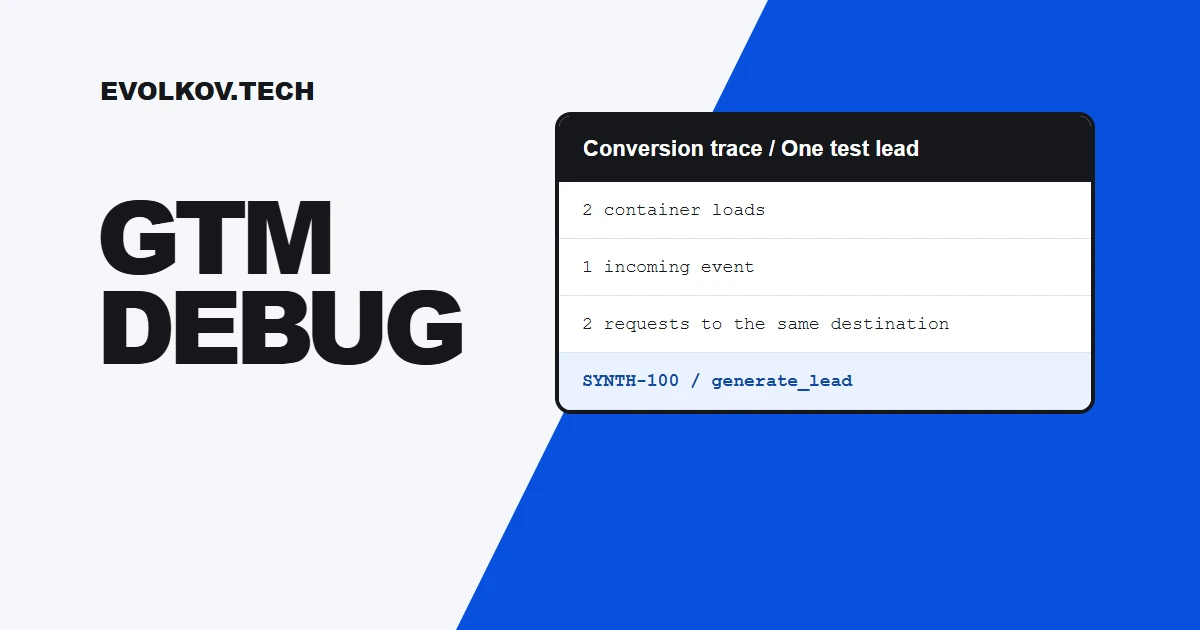
How to find duplicate Google Tag Manager containers
Open Network in Chrome DevTools, turn on Disable cache and reload the page. For a redirect to a thank-you page, enable Preserve log. Search for gtm.js, open a result and record its id parameter. The Initiator view can reveal where the script was loaded. For example, a shared site template may add one script while a landing page plugin inserts another. Check a fresh visit and repeat after in-app navigation when the landing page opens without a full reload.
Two different IDs identify two configurations to review. If the same ID appears twice in markup or in two paths through the app, caching and the loader’s behavior can affect the number of visible requests. Search the site template and the runtime DOM for the ID. ns.html?id=… belongs to the noscript fallback. Google tag setups can also use gtm.js, and a first-party gateway can load it from your domain. Confirm what each script owns before changing it. Google tag documentation and the Chrome DevTools Network reference.
How to confirm that one lead was counted twice
1. Submit a single test lead
Use staging or a separate test analytics property. Pick one workflow where the server accepts the form and record the time. Keep the form, page, consent choice and preview settings consistent before and after the fix. Use fictional test data. To establish whether the submission actually succeeded, start with the landing page form testing checklist.
2. Compare inputs and fired tags in Tag Assistant
Open Preview in your container workspace and connect to the page. Check how many times the successful form event appears in the timeline. Select each detected container and inspect its fired tags and outgoing data separately. Your app can name its own success event differently from the GA4 event generate_lead. Find the event that drives the trigger, then inspect the destination in the tag configuration. The tag’s label alone cannot identify where its data goes. Google’s guide to Tag Assistant views.
3. Confirm the destination in the network payload
Filter Network to your analytics endpoint. Inspect Payload for the event name and destination ID. Count relevant events inside the payload. Batching can put several events in one request, while retries can show up as more than one request. With server-side GTM, the browser shows the request that reaches the server. Check the server preview or a test collector log to see where the server forwarded it.
Five scenarios tested in Chromium
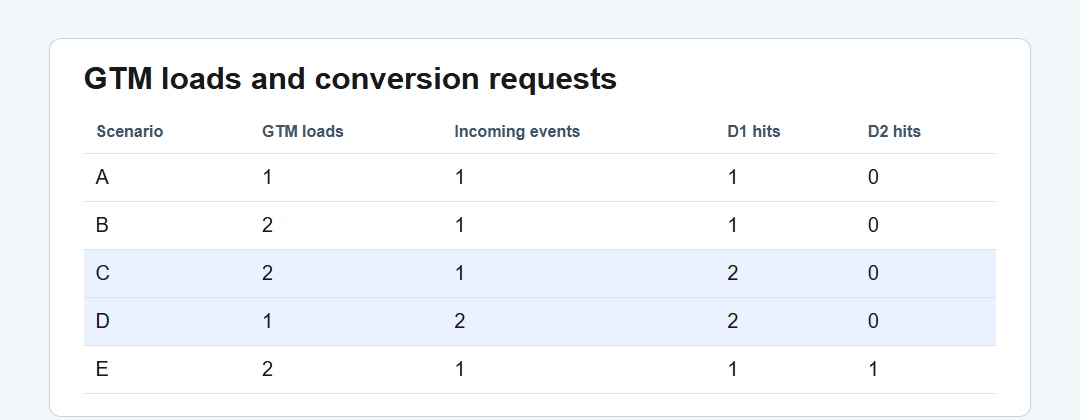
I ran five isolated pages in Chromium. Their gtm.js scripts and /collect endpoint were served from 127.0.0.1. Each scenario used the same fictional lead marker, SYNTH-100. D1 and D2 were mock destinations. The fixture shows what each causal path looks like and sent no requests to GTM or any GA4 property.
| Scenario | Loads | Inputs | D1 | D2 | What it shows |
|---|---|---|---|---|---|
| A. Baseline | 1 | 1 | 1 | 0 | One input reaches one destination once. |
| B. Two containers, one lead tag | 2 | 1 | 1 | 0 | The second load does not itself duplicate the conversion. |
| C. Two tags target the same destination | 2 | 1 | 2 | 0 | Inspect the tag and trigger in each container. |
| D. The input fires twice | 1 | 2 | 2 | 0 | Inspect the app that pushes the event. |
| E. Two destinations | 2 | 1 | 1 | 1 | Each destination receives one event. Check whether both are intended. |
Download the five scenario traces (JSON)
Cases C and D produce the same count in a single destination with different causes. In C, both tags listen to one input and target the same destination. In D, one tag runs twice because the app produced two inputs. The aggregate GA4 event count alone cannot tell you which path you are seeing. Compare the timeline, the fired tag and the payload to isolate it.
What if a tag fires without a request, or a request arrives without an input?
If Tag Assistant reports Fired but Network has no matching event, compare consent, the browser request status and the configured destination. For example, DevTools might show a request blocked by the browser, while a report filter might hide your test. If a request appears without the expected dataLayer event, inspect Initiator for a direct Google tag call, analytics code in the app or a thank-you page trigger. Identify the producer before changing a container that might have no part in the dispatch.
How to fix the duplicate and verify the change
If two tags cause the duplicate, assign ownership of generate_lead for that destination to one container. Disable the extra trigger in staging and rerun the submission. Before removing an entire container, confirm which tags support ads and consent. If the input is duplicated, trace both success paths. For example, the app may emit an event after the server responds and the thank-you page may emit it on load. Keep the path that emits on confirmed acceptance.
After fixing the issue, test four paths and record the change in the same destination. The first accepted submission adds one event, a validation failure adds zero, reloading the confirmation for the same submission adds zero, and a separately accepted lead adds one. The last check catches an overly broad filter that suppresses genuine follow-up leads. See the landing page lead tracking guide to trace the full path from campaign URL to accepted lead.
Frequently asked questions
Can two containers stay on one page?
Yes, when each has a clear owner, defined tags and intended destinations. For a lead, verify one event in each destination that should receive it.
Does Fired in Tag Assistant mean GA4 counted the lead?
Fired shows that the tag ran during preview. Confirm the outbound data and destination, then check the event in the test GA4 property. Verify the key event setup separately if it controls your conversion count.
Need help with your website?
Development and SEO services →