Enable llms.txt in WordPress with Yoast SEO
In WordPress admin, open Yoast SEO → Settings → Site features. Under AI tools, switch on llms.txt and save. Use manual page selection for important stable pages supported by your installation, such as core documentation or tools. Yoast setup instructions.
Before enabling a generator, identify which component serves /llms.txt. If a static file or another plugin already answers, save a copy and inspect routing. Pick one provider for the public path so you can tell which component produced the response. Use llms.txt Studio to draft the link set.
Verify the public /llms.txt response
Send a GET and save the headers and body. The live example returned 200 with Content-Type: text/plain. Inspect the file for the expected text title, sections, and URLs. A themed error page can also return 200. Substitute your own domain in the commands below.
curl -fsS -D llms-headers.txt https://example.com/llms.txt -o llms-before.txt
# After publishing, save the public response again.
curl -fsS https://example.com/llms.txt -o llms-after.txt
diff -u llms-before.txt llms-after.txt
What changed after two localized posts went live
| Snapshot | Total links | Recent posts |
|---|---|---|
| Before release | 117 | 5 |
| After release | 117 | 5 |
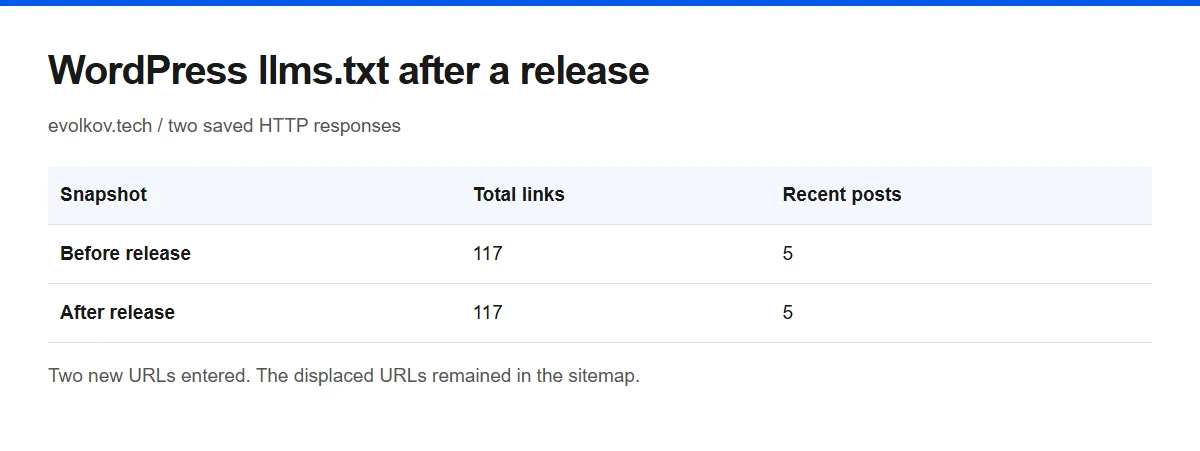
On evolkov.tech, one snapshot was saved before release and another after the Russian and English guides to table conversion were published. Each file contained 117 total links and five entries in the automatic posts section. Two new URLs entered and two older URLs left. All four returned HTTP 200 and were present in the sitemap. That is an observation of this installation and release.
+ /blog/html-tablica-v-markdown-obedinennye-yachejki
+ /en/blog/html-table-to-markdown-rowspan
- /en/blog/wordpress-sitemap-without-plugin
- /blog/wordpress-reverse-proxy-cikl-redirect
Check the automatic and permanent links
Choose one new URL and one stable page. Record which sections should contain them. After the file refreshes, compare the links themselves instead of the number of lines. Check the article and its translation separately. If stable documentation belongs in the file, use the supported manual selection and verify it is still there on the next release.
If the expected new post does not appear, confirm which provider served the file, whether a cache sent an earlier copy, and whether Yoast refreshed the output. Use the separate Yoast refresh troubleshooting guide for that case. For a broader review, follow the published llms.txt audit.
The file introduces selected public resources to clients. Its contents can be checked independently of the XML sitemap, crawl rules, and indexing reports. The presence of a URL does not demonstrate use or citation by a particular service. The llms.txt format proposal.
FAQ
Is a multilingual WordPress site the same as WordPress Multisite?
Check the installation type. Yoast’s documentation says its llms.txt feature is unavailable for WordPress Multisite. Localized URLs in one installation are a different configuration.
What if an older post disappears from the file?
Check the direct URL and its sitemap entry. The automatic section can rotate after a release. Use the supported manual selection for stable links.
Need help with your website?
Development and SEO services →