Why HTML table rows shift in Markdown
The source headers are Plan, Region, and Seats. The Basic cell spans two rows. The second row physically contains two cells, though the browser displays it under three headings. A GFM pipe table stores individual cells in each row and has no way to carry that vertical span. GFM table rules.
<table>
<thead>
<tr>
<th>Plan</th>
<th>Region</th>
<th>Seats</th>
</tr>
</thead>
<tbody>
<tr>
<td rowspan="2">Basic</td>
<td>East</td>
<td>2</td>
</tr>
<tr>
<td>West</td>
<td>4</td>
</tr>
</tbody>
</table>
Inspect the actual rowspan conversion
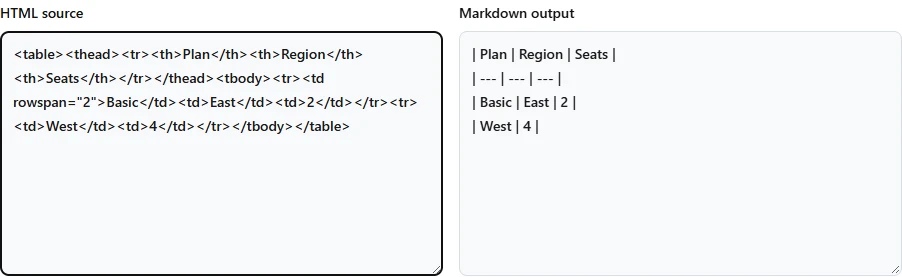
Paste the input into the HTML-to-Markdown converter. In both locales, the output contained | West | 4 |. Rendering that Markdown with Pandoc 3.14 placed West under Plan, put 4 under Region, and left Seats empty. The screenshot shows the actual input and output.
| Case | Markdown row | Plan | Region | Seats |
|---|---|---|---|---|
| Merged | | West | 4 | | West | 4 | Empty |
| Explicit cells | | Basic | West | 4 | | Basic | West | 4 |
Replace the merge with explicit cells
In the original table, Basic applies to both regions. Remove rowspan and add Basic at the start of each data row. Converting again produces three values on the second line and keeps the seat count in its column. If the merged cell represented a subtotal, avoid copying it into every row. Keep a separate subtotal row or confirm the correct data structure.
| Plan | Region | Seats |
| --- | --- | --- |
| Basic | East | 2 |
| Basic | West | 4 |
Verify the exported Markdown in your renderer
Save the converter output as table.md and render it to HTML with the command below. Inspect one record in the result. In the fixture, West must have 4 seats, with 6 across both regions. The broken version puts 2 and a blank in the Seats column. The total detects the mismatch even if the rendered table looks tidy.
pandoc -f gfm -t html table.md -o rendered.htmlFor a batch, start with one table from each template. Compare row counts, selected records, and numeric totals. If you are running conversions locally, use the Pandoc workflow for repeatable files. During a WordPress export, inspect table blocks and embedded HTML separately.
For flat data, a CSV can keep one explicit value per row. For hierarchical headers and visual spans, keep HTML if your destination accepts it. Verify the published renderer because platforms can apply their own rules to embedded HTML. Pandoc format documentation.
If you need the table in a spreadsheet, export it using the HTML table to CSV converter.
If the destination requires CSV, verify column positions and merged values with How to convert an HTML table to CSV in Python.
Need help with your website?
Development and SEO services →