Download the evidence (JSON) · Download the sample export (ZIP)
What to export, and why this is not one single task
If the goal is to export published WordPress posts to Markdown, it helps to separate three jobs. First, fetch the collection through the REST API. Second, verify that you did not miss a page of results. Third, preserve the relationships that matter: slug, original permalink, internal links, and image URLs. For the official field reference, see WordPress REST API: Posts. For pagination behavior, use Pagination in the REST API. And if you also use WordPress tooling for site migration, remember that wp export produces WXR/XML. That is useful for moving WordPress content, but it is not a Markdown export and it does not prove that a block-based layout was preserved as editable Markdown.
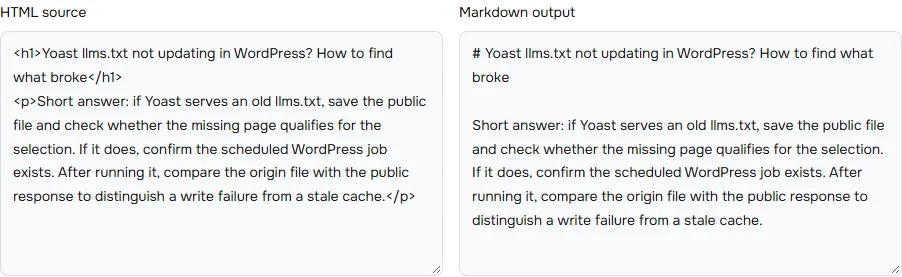
Check a single post in the HTML to Markdown converter before processing the whole set. If you intend to publish the files, connect the HTML and Markdown versions and add the important URLs using llms.txt Studio. If WordPress still serves an older index, diagnose the Yoast refresh.
A tested working path
The safest small-batch workflow is straightforward: request the post collection, confirm the total page count in the response headers, export the content, then compare source links and image URLs against a manifest. In this evidence set, the public collection returned only published posts. Drafts and private posts were not part of this run, and pages live on a separate endpoint, so they are not mixed into the post collection.
curl -sS "https://evolkov.tech/wp-json/wp/v2/posts?include=587,589,591&per_page=3&_fields=id,slug,link,title,content" \
  -H "Accept: application/json"
For a full collection, keep the order stable and inspect the headers:
curl -i -sS "https://example.com/wp-json/wp/v2/posts?per_page=50&orderby=id&order=asc" | sed -n '1,20p'Then read X-WP-TotalPages. If it is 1, as it was in this run, one page is enough. If it is larger, fetch the next pages and compare both X-WP-Total and the manifest so you can catch duplicates or missing pages. That matters when you build a batch exporter, not only a one-off conversion.
Repeat the check with one post
- In the first JSON response, select one post. Paste its
content.renderedinto the HTML field and enter itslinkas the base URL. - Turn off main-content extraction because
content.renderedalready contains the post body. Convert it and compare one text link and one image URL against the manifest. - Before migrating a whole section, sample records with tables, images and code. Check the links on the new site after publishing, even when each URL appears in the exported file.
Decision table: symptom, possible cause, how to check, how to fix, evidence the fix worked
| Symptom | Possible cause | How to check | How to fix | Evidence the fix worked |
|---|---|---|---|---|
| Empty list or 401/403 | Wrong route, access restrictions, or auth required for private content | Open the collection endpoint and compare the response status; in this evidence set the response was 200 |
Use the correct public posts route and do not expect drafts/private content in this run | X-WP-Total matches the manifest count; here that count is 3 |
| Missing posts | Pagination was skipped or the order was not fixed | Check X-WP-TotalPages; for batch export use orderby=id&order=asc |
Fetch every page and write ID plus slug into the manifest | The page count and file count match, and there are no duplicate IDs |
| A shortcode is still visible in Markdown | The converter did not expand the shortcode automatically | Compare the original HTML against the resulting MD for a single post | Run a quick single-post check with the existing converter and add shortcode handling | The MD no longer contains raw [shortcode] markup, but the readable text remains |
| Images are broken | Relative paths were not resolved or image URLs were lost | Check that each source image URL appears in the output; in this run each post had 1 unique image URL |
Keep the original image URLs and resolve relative links against the original permalink | The number of unique image URLs in output matches the source, and no image URLs are missing |
| Internal links point to the wrong place | The original permalink was not preserved or the domain was rewritten too early | Compare the absolute URLs in source and Markdown; in this run each post had 10 unique link targets |
Store the permalink in the manifest and rewrite only after validation | The manifest URL list matches output, and missing links are zero |
What the real evidence showed
The report dated 2026-11-20 converted three posts into separate Markdown files: llms-txt-v2-markdown.md at 13887 bytes, yoast-llms-txt-not-updating.md at 7460 bytes, and yoast-llms-txt-ne-obnovlyaetsya.md at 11674 bytes. For all three records, the source URL was preserved and both missingLinks and missingImages were empty. That is the right way to talk about a Markdown export: not by claiming it preserves WordPress blocks perfectly, but by showing that text, links, and image URLs survived the source-to-output comparison.
It is also important not to confuse link verification with link reachability. This run compared unique absolute URLs in rendered input against references in the generated Markdown. Media downloads, network reachability, and a future asset migration to a new host were not tested here. If the old host disappears later, the manifest with the original permalink plus the asset URLs becomes the practical basis for rewrite rules instead of guesswork.
Checklist before a larger batch export
- Confirm that the endpoint is the public posts collection, not pages.
- Record
X-WP-TotalandX-WP-TotalPages. - Use a stable order:
orderby=id&order=asc. - Write one
.mdfile per post. - Use slug plus ID if slugs might collide.
- Keep the original permalink in the manifest.
- Resolve relative links against the original permalink.
- Preserve image URLs, not just alt text.
- Compare link and image counts before and after conversion.
- Test one problematic post on its own before you run the batch.
Compact Q&A
Can this workflow export drafts?
No. This setup is for the public published post collection; drafts and private posts are not part of this run.
Why do I need X-WP-TotalPages if I can already see one post?
Because you need to know whether there are more pages in the collection when the site has more content.
Do I need to copy image bytes?
No. In this scenario, image URLs are preserved; media bytes were not downloaded or validated.
How is WXR different from Markdown export?wp export gives you XML for WordPress migration, while Markdown is a separate text output for reading and further processing.
What if one post breaks the batch?
Run that post alone through the existing converter as a quick check, then put it back into the batch after you fix the issue.
If images or links break after moving an exported file, check its relative Markdown paths with a worked example.
If your published HTML is already available as individual files, follow How to convert HTML to Markdown with Pandoc and verify the export for conversion and review.
If the WordPress export contains rowspan, review the measured table conversion in How to convert an HTML table to Markdown without shifting its data.
Need help with your website?
Development and SEO services →