The article below includes a real Reproleaf run on a synthetic HTML fragment plus a practical verification checklist. For related context, see the locale-specific pages: Export WordPress Posts to Markdown, HTML to Markdown, and LLMs.txt v2 in Markdown.
Why relative links break after a move
The failure usually looks simple: text still renders, but the image is missing; the link opens the wrong file; or a document that looked fine in the editor now points somewhere else after publication. That is not a Markdown bug. It is expected behavior for relative links, because they are resolved against a base URL or the current file location.
If you publish web content, use absolute HTTPS links for assets that must stay online independently of the repository. If a document lives inside a GitHub repository and nearby images or sibling .md files move with it, relative paths are fine — but only if the folder structure and filename casing stay consistent. For the official syntax and URL-resolution rules, refer to GitHub Docs and MDN URL API.
How the base URL changes the result
The key detail from the measurement is that a base URL with a trailing slash and a base URL without one produce different outcomes. That matters when you move an exported Markdown file to another folder or publish it under a different route. The test used a synthetic HTML fragment with <a href="../manual/start.md"> and <img src="./cover.webp">. Reproleaf changed only link resolution; the example.com URLs below are illustrative and were not fetched.
| Symptom | Possible cause | How to check | How to fix | Evidence the fix worked |
|---|---|---|---|---|
| Image disappeared after moving the .md file | ./cover.webp still points at the old folder |
Compare the new .md location with the image location | Move the image next to the .md file or update the relative path | The image URL points to the new folder and opens correctly |
| Link goes to the wrong place | The resolution base changed; a URL with / at the end behaves differently from one without it | Check which base the renderer or site actually uses | Rewrite the link for the real base or switch to an absolute HTTPS URL | The link opens the expected document |
| Sibling files broke after a folder move | The relative path ../manual/start.md was calculated from the old directory level |
Draw the folder tree and mark the new depth | Adjust the number of ../ segments or move the related file closer |
The link reaches the correct file with no 404 |
| Works locally but fails on hosting | Filename or folder case does not match exactly | Compare the exact spelling in the repo and in the link | Make casing identical and verify the host-side filename | The file opens on the host exactly as in local preview |
Reproleaf measurement: the exact output
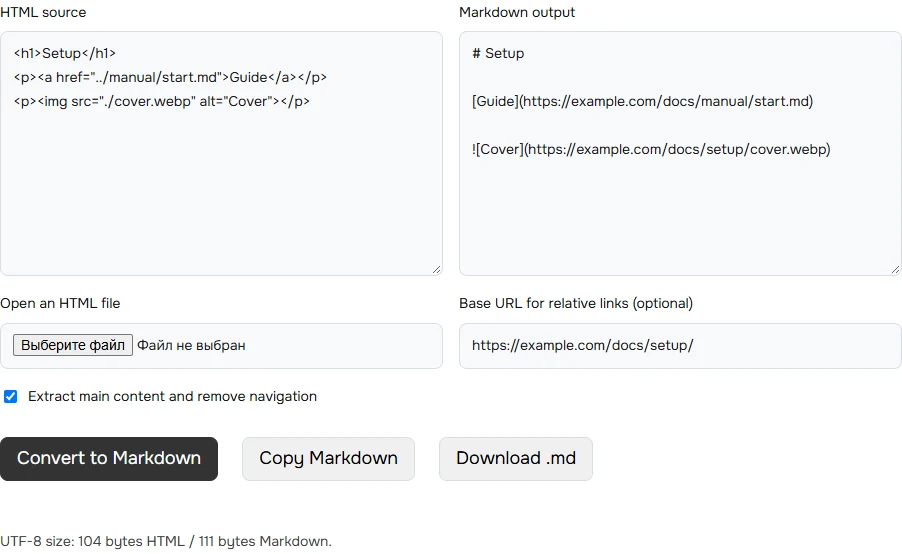
Here is the measured output from the test. It is useful as a reference because it shows that only link resolution changes — not the meaning of the original Markdown.
The input HTML fragment was: <h1>Setup</h1>
<p><a href="../manual/start.md">Guide</a></p>
<p><img src="./cover.webp" alt="Cover"></p>. With an empty base URL, the RU and EN outputs preserved the relative paths unchanged: [Guide](../manual/start.md) and .
With the base https://example.com/docs/setup/, the result became https://example.com/docs/manual/start.md for the link and https://example.com/docs/setup/cover.webp for the image. With the base https://example.com/docs/setup, the output changed again: https://example.com/manual/start.md and https://example.com/docs/cover.webp. That is the practical takeaway: the trailing slash changes which directory the path is resolved against.
Source document: https://example.com/docs/setup/index.md
Target document: https://example.com/archive/index.md
Relative path: ./cover.webp
Before move: https://example.com/docs/setup/cover.webp
After move:  https://example.com/archive/cover.webp
Simple tree and a worked move
It is easier to verify paths against a small directory tree than to guess. For example:
docs/
  setup/
    index.md
    cover.webp
  manual/
    start.md
archive/
  index.md
If you move docs/setup/index.md to archive/index.md, then ./cover.webp no longer points to docs/setup/cover.webp; it points to archive/cover.webp. In that case, either move the image with the document or rewrite the path. For published web pages, prefer a stable HTTPS address for resources that should not depend on the repository layout. For files inside a GitHub repository, keep assets next to the correct .md file and check filename casing on the host.
Verification checklist
- Identify what the path is relative to: a document folder or a page URL.
- Check whether the base URL has a trailing slash, because that changes the result.
- Compare the .md location with the target files in the tree.
- Verify exact filename and folder casing.
- Use an absolute
https://URL for assets that must remain accessible outside the repository. - Use relative paths inside a repository only when the folder layout is stable.
- After a move, open the link and image in preview and confirm the path matches the expected destination.
Compact Q&A
Why does the same link work in one place and fail in another?
Because the base URL is different. A relative path always depends on the page or folder it is resolved from.
Which matters more, the path or the filename?
Both matter. In practice, casing often breaks things: Cover.webp and cover.webp may be different files on the host.
Can I keep ../manual/start.md after a move?
Yes, if the new folder depth still makes that parent-step correct. Otherwise, recalculate the path.
When should I switch to an absolute link?
When the resource must stay valid outside the repository, such as in published documentation or a public web page.
What about anchors like #?
Anchors usually resolve within the same document, but fragment behavior is renderer-specific. Check the platform you publish to.
The short rule is easy to remember: re-check every relative Markdown path after any file move, folder change, or base-URL change. A quick tree check and the official URL-resolution rules are usually enough to prevent broken links and missing images.
To see what the converter actually retains, inspect the command-line experiment in How to convert HTML to Markdown with Pandoc and verify the export.
Need help with your website?
Development and SEO services →