Convert HTML to Markdown with Pandoc
The four conversions use Pandoc 3.14. Two complete documents differ only in the element around the article: main in one, a generic div in the other. The other two convert the same article fragment with different line wrapping. For setup and options, see the installation instructions and Pandoc manual.
If the site is in WordPress and you do not yet have source files, start with the WordPress export workflow. To inspect a single fragment without the CLI, use the HTML-to-Markdown converter and compare its result with the source.
Run the conversion on one file
pandoc -f html -t gfm --wrap=none -o article.md article.html
pandoc -f html -t gfm --wrap=auto --columns=40 -o article-auto.md article.html
What changed across the four runs
| Input | Wrap | Menu in output | Non-empty lines |
|---|---|---|---|
| full | none | No | 8 |
| generic | none | Yes | 15 |
| article | none | No | 8 |
| article | auto | No | 13 |
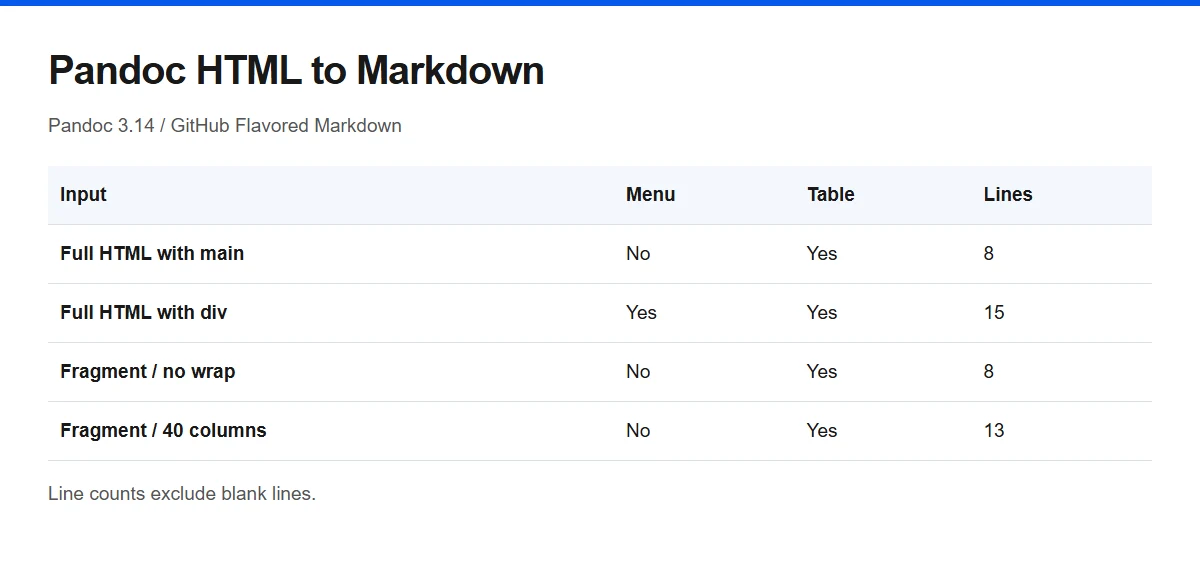
In this fixture, when the article was wrapped in main, both navigation blocks stayed out of the output. With a generic div, both appeared. For deterministic input, save the selected article fragment separately. In DevTools, identify the start and end of the content and copy its HTML. Before automating that step, record the selector and check it against more than one template.
This is the observed output for the unwrapped article fragment.
# Release checklist

Keep the export readable by confirming the destination, the heading hierarchy, and the text inside every important table before publishing a converted file.

## Checks

- Save the evidence.
- [Read verification steps](./verification.html).

| Item       | Result |
|------------|--------|
| Public GET | 200    |
Switching from --wrap=none to --wrap=auto --columns=40 changed the fragment from 8 to 13 non-empty lines. The heading, ordinary table, and relative path were present in all four runs. Line count measures wrapping here. Pin the chosen setting when maintaining the Markdown in version control.
Convert a folder without overwriting the input
For a batch, map each HTML input to one Markdown file in a separate output directory. This PowerShell example skips existing results. To review a fresh export, write to another directory and compare it with the previous output. A failed file should stop the run with a nonzero exit code.
New-Item -ItemType Directory -Path output -Force | Out-Null
Get-ChildItem -LiteralPath input -Filter *.html -File | ForEach-Object {
  $outputFile = Join-Path output ($_.BaseName + '.md')
  if (-not (Test-Path -LiteralPath $outputFile)) {
    pandoc -f html -t gfm --wrap=none -o $outputFile $_.FullName
    if ($LASTEXITCODE -ne 0) { throw "Pandoc failed for $($_.Name)" }
  }
}
Verify the Markdown before publishing
Pandoc kept ./verification.html as written. After moving the Markdown file, that relative path may resolve somewhere else. Use the relative links guide to test the destination in your publishing system.
Compare one article with a table, one with images, and one with long paragraphs. View them in the target Markdown renderer. For an unexpected result, keep the HTML input, tool version, and exact command. That gives you the information to reproduce it or isolate one template from the batch.
FAQ
What if the Markdown contains site navigation?
Extract the article fragment and rerun the same command. Check the beginning and end of the Markdown. If the menu is still present, adjust the extraction boundaries.
Do complex tables need a separate check?
Yes. The tested table has no merged cells. Review header meaning, column count, and multiline cells in the rendered output.
For a table with merged rows, verify the actual destination cells using How to convert an HTML table to Markdown without shifting its data.
Need help with your website?
Development and SEO services →