Verify the WordPress scheduled time and site time zone
The editor shows the time in the site’s configured time zone. Compare the post’s scheduled date with Settings → General. For example, 15:00 in a UTC+05:00 zone corresponds to 10:00 UTC on the same date. Confirm the two values before rescheduling.
Find the publish_future_post event with WP-CLI
From the intended WordPress installation, run the read-only commands below. Replace 123 with the post ID. Compare post_date_gmt and next_run_gmt in UTC. In multisite, target the intended site with --url. If several events are listed, find your post ID in args.
wp post get 123 --fields=ID,post_status,post_date,post_date_gmt --format=json
wp cron event list --hook=publish_future_post --fields=hook,next_run_gmt,args --format=jsonIf the scheduled time is ahead, the post can be waiting normally. If it is overdue, still future, and the event is missing, recheck the status, ID, and environment. Reschedule a control post in the editor on staging and verify that its event is created. That distinguishes scheduling failure from execution failure.
What the two scheduled-post tests showed
Two posts were created with future status in an isolated WordPress Playground. The fixture backdated the first post and queued an event that was ready to run. The second kept its future date. Automatic WP-Cron spawning was disabled. Only the ready publication event was invoked. The core callback checks the status and post_date_gmt before publishing. See the publication callback reference.
| Post | Status before | Status after | Event remains | Public GET |
|---|---|---|---|---|
| Due now | future |
publish |
No | 200 |
| Not due yet | future |
future |
Yes | 404 |
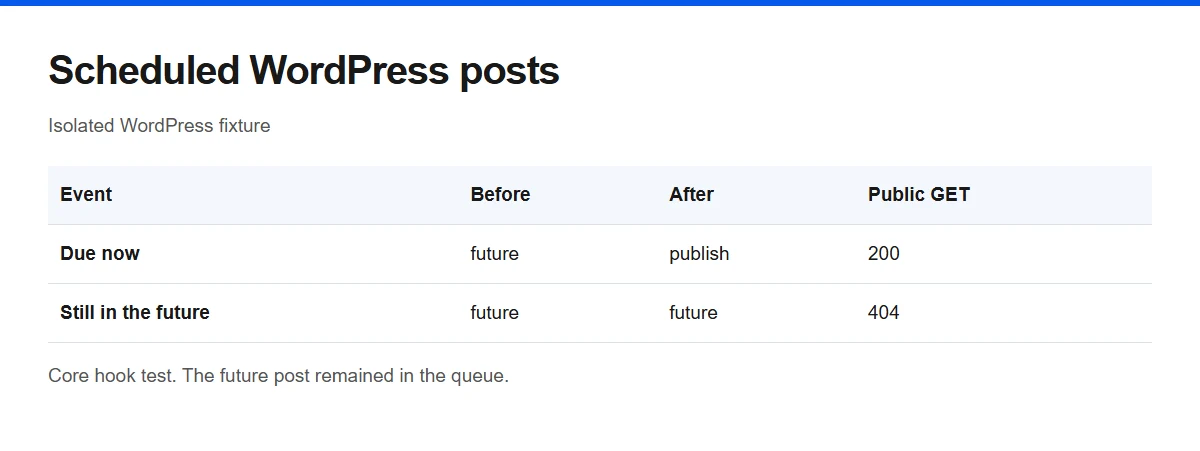
The first post then returned HTTP 200 to a logged-out GET and showed the expected title. The second retained its event, returned 404 publicly, and did not show its draft title. These are isolated core results. Test web triggers and system scheduling independently on your hosting setup.
Restore the expected WP-Cron trigger
On a standard install, page requests trigger WP-Cron. Infrequent traffic or cached pages that never reach PHP can delay execution. If you expect automatic spawning, run wp cron test and inspect the reported errors. If DISABLE_WP_CRON is set, identify which task replaces it and check that task’s recent runs and logs before changing anything.
For time-sensitive publishing, configure a clear trigger such as the host’s system scheduler. Verify that it is processing due work for the right installation before disabling the page-triggered behavior. See the WP-Cron handbook and system scheduler setup.
Verify the next scheduled posts
After the fix, schedule two control posts at different times on staging. After the first one is due, check for publish, removal of its event and a public 200. Before the second is due, confirm future, an event in the queue, and no publicly accessible post. Add the sequence to your release checklist and website maintenance scope when publish timing matters.
If a time-sensitive post is approved for release, publish that one through the editor. The command wp cron event run --due-now runs all due work and can trigger mail, imports, or other jobs. Use it in an isolated environment when testing the whole queue. See the event run command.
If the post is already visible and only its notification failed, investigate delivery independently. The WordPress mail delivery guide shows how to trace what happened after a send.
FAQ
What if the post is published but its URL returns 404?
Check the correct public address while logged out. If you have access, compare origin and CDN responses. Stale cache or permalink routing can fail independently of cron.
What does wp cron test check?
It checks the standard WP-Cron spawning mechanism. If you use a different scheduler, verify that job’s run history and a scheduled control post instead. See wp cron test.
Need help with your website?
Development and SEO services →