The real downloadable template is linked below the first paragraph. It is useful for recording the form event, wp_mail(), SMTP response, and mailbox result without guessing.
See the official references: wp_mail(), wp_mail_failed, phpmailer_init, and for Contact Form 7, Setting Up Mail. If you need to separate a form issue from a broader site issue, also see form testing checklist and technical SEO.
How to read the delivery chain
An email can fail at any stage: the user clicks submit, the form accepts the submission, WordPress calls wp_mail(), SMTP responds, and then the message either reaches the inbox or is filtered into spam, quarantine, or blocked by domain policy. So do not compare only “the form submitted” against “no email arrived.” First identify where the mismatch happens: in the form UI, in WordPress mail handling, or in the mail infrastructure.
One important distinction: a 250 response means the receiving server accepted the message, but it does not prove inbox delivery. A 550 response is a permanent failure and usually points to an invalid recipient, a block, or a server policy. A transient 4xx code is different: the server is asking for a retry later, so the check must include a second send and queue observation.
Worked diagnostics step by step
Start with a minimal test that removes the theme, plugins, and the form plugin itself from the equation. In the controlled scenario, WordPress was exercised through WP-CLI and a local SMTP listener; this is a test of the wp_mail() mechanism, not a Contact Form 7 UI test. That makes it useful when you need to decide whether the site’s mail layer is alive at all.
Run this on staging. Replace test@example.test with an address you control in your test mailbox.
wp eval 'var_export( wp_mail( "test@example.test", "Mail test", "Body test" ) );'If you configure phpmailer_init, use it only to point to the intended SMTP server and only with a temporary test mailbox. Do not log addresses, message bodies, or passwords in production diagnostics. For Contact Form 7, check the To, From, and Reply-To fields separately: mail should go out from a domain authenticated with your provider, while the user’s address is usually best placed in Reply-To rather than substituted into From.
If your form uses mail-tags, confirm that they are supported and that they actually resolve. For example, the sender address should be a verified domain address, not a visitor’s arbitrary mailbox. Otherwise even messages accepted by SMTP may still be rejected later by SPF, DKIM, or DMARC policy.
Worked comparison table
| Symptom | Possible cause | How to check | How to fix | Evidence the fix worked |
|---|---|---|---|---|
| The form shows success but no email arrives | The message was accepted by the site but not delivered to the mailbox | Compare the form submit event, the wp_mail() result, and the SMTP response 250 or 550 | Check the path to a test inbox and the SMTP settings | You see wp_mail true, SMTP 250, and the message appears in the test mailbox or its logs |
wp_mail() returns false | Failure in WordPress, a plugin, or the mail transport | See whether wp_mail_failed fires | Fix phpmailer_init, SMTP, or message formatting | wp_mail_failed no longer fires and the call returns true |
SMTP responds with 550 | Permanent rejection: address, block, or policy | Inspect the exact server reply in the test log | Correct the recipient address, domain authentication, and provider rules | The reply changes to 250 and the message is accepted |
SMTP responds with 4xx | Temporary issue: queue, limit, or service unavailability | Retry the send and watch for delay | Remove the temporary blocker and repeat the test | After retrying, you get a stable 250 and no mail is lost |
| SMTP accepts the message but inbox stays empty | Spam filter, quarantine, or SPF/DKIM/DMARC misalignment | Check spam, the provider logs, and domain alignment | Use an authenticated From, a correct Reply-To, and the provider’s DNS records | The test mailbox shows inbox delivery or a quarantined item with a clear reason |
What the controlled cases show
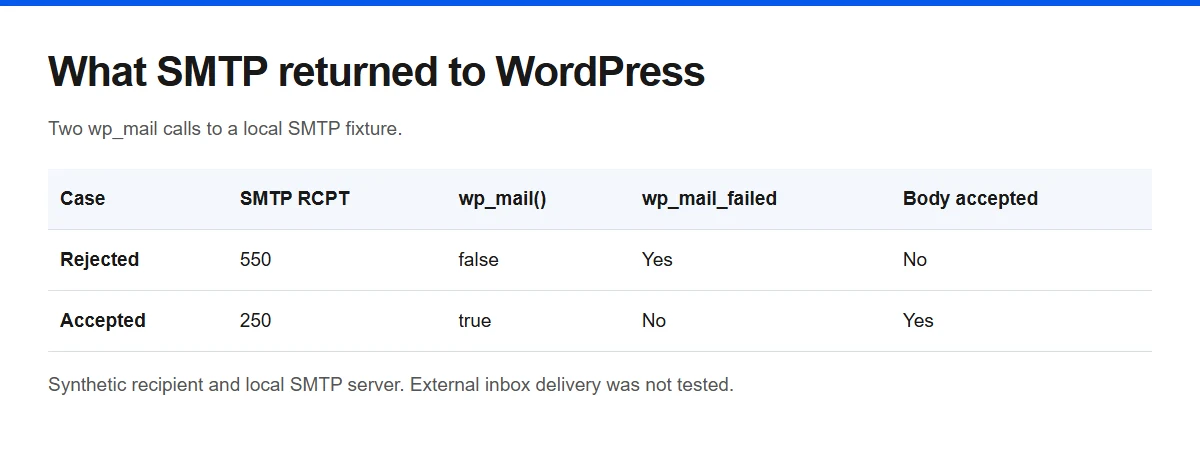
The local SMTP listener gives two practical reference frames. In the SMTP REPLY / 550 frame, WordPress gets a rejection: wp_mail() returns false, and wp_mail_failed records the problem. This is the classic case where the button press happened, but the mail layer could not accept the message at SMTP time.
In the SMTP REPLY / 250 frame, the picture is different: wp_mail() returns true, wp_mail_failed does not fire, and the local server accepts the body. But that only proves local acceptance, not external delivery. The next step is a verified test inbox at a real provider, where you can observe whether the message lands in inbox, spam, or quarantine.
If the result flips between 550 and 250, do not assume the problem is solved. First confirm that the same test address behaves consistently, then repeat the test on a real domain, and only then move back to production forms.
Match one submission across the logs
On a staging site, submit the form to a test inbox you control. Put a unique label such as FORM-CHECK-01 in the subject and record the UTC time. Match the submission in the form log, then find its SMTP response and message ID in the mail provider’s log. Check for that exact label in the test inbox.
If wp_mail_failed fired, inspect the mail transport. If the provider accepted the message and recorded a later bounce, read that delivery response. If you find the message in spam, inspect sender configuration and domain authentication. A direct WP-CLI send tests the transport separately from the form setup.
Reader checklist
- Verify that the form truly accepts the submission, not just that it shows a success notice.
- Compare the
wp_mail()return value with the presence ofwp_mail_failed. - Make sure
Fromuses an authenticated domain and the user address goes intoReply-To. - Check the SMTP response:
250means accepted,550means rejected, and4xxmeans temporary failure. - Open the test inbox and inspect spam and quarantine separately.
- Verify DNS and provider authentication settings.
- Do not log addresses, message bodies, or passwords in production diagnostics.
Quick Q&A
Why does 250 not guarantee inbox delivery?
Because it only means the receiving server accepted the message. It can still be filtered by spam rules, domain policy, or quarantine.
What does wp_mail_failed mean?
It is the hook that reports a failure at the WordPress or transport layer. If it does not fire, that still does not prove external delivery.
Should the visitor’s address go in From?
No. Use a verified address on your domain in From, and place the visitor’s address in Reply-To.
How do I tell a form issue from a mail issue?
Test wp_mail() outside the form first. If WordPress mail and SMTP work, return to the form fields and mail-tags.
What should I do with 4xx?
It is a temporary rejection. Retry the send, check the queue and server state, then confirm a stable 250.
When to move to the next step
If the form accepts the submission, WordPress returns true, SMTP replies 250, and the message still does not show up in the inbox, the remaining causes live with the provider and domain policy. If wp_mail() returns false or you see 550, fix the configuration before retesting. Only after that should you move back to forms, site acceptance, and other site work.
If the email depends on a post going live and the post is still scheduled, diagnose How to fix a missed scheduled post in WordPress first.
If the request is rejected before mail delivery, check the form’s spam rule using How to add a honeypot to a form and verify it still accepts real leads.
Need help with your website?
Development and SEO services →