Find the built-in XML sitemap in WordPress
WordPress core has supported XML sitemaps since version 5.5. The fixture was public and used post-name permalinks. Its index links to sitemaps for posts, pages, categories, and authors. Which children appear depends on the site’s content. WordPress core sitemap notes.
Read the index and a child sitemap
In the index response, find the sitemapindex root and its loc references. Open a child file directly from that list. A page or post sitemap has a urlset root and contains the final URLs. If the browser warns about XSLT, download the raw XML with GET. The stylesheet instruction controls display and does not make the XML invalid by itself.
What the clean WordPress fixture returned
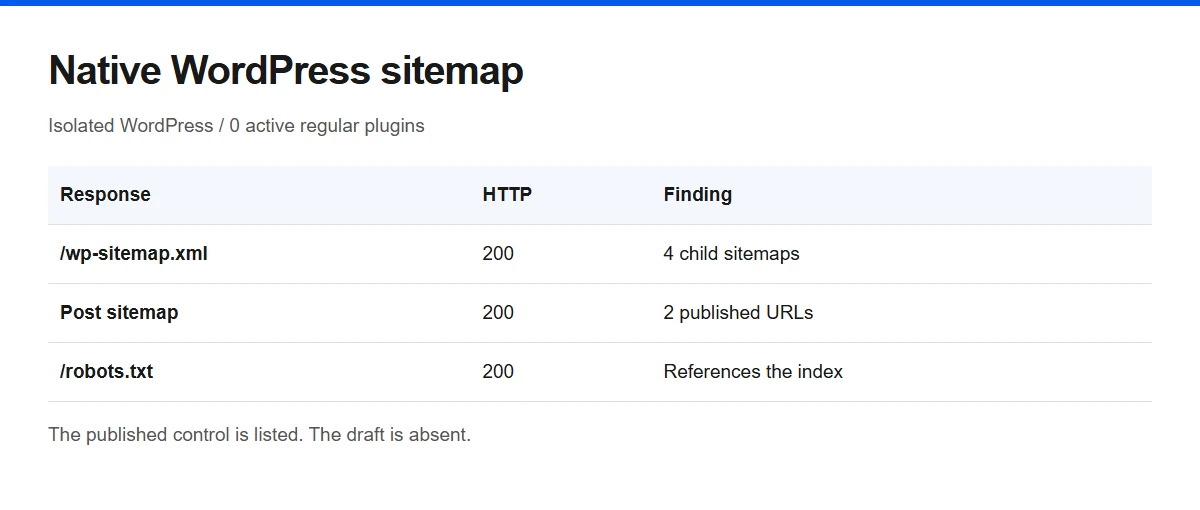
In isolated WordPress Playground, the index, child post file, and robots.txt each returned 200. The index contained four child references. The post sitemap listed the published fixture and the default post. A draft in the same installation was absent. The downloadable evidence includes the complete responses.
| Resource | HTTP | Observed result |
|---|---|---|
/wp-sitemap.xml |
200 | Four child sitemaps |
/wp-sitemap-posts-post-1.xml |
200 | Two published posts |
/robots.txt |
200 | Points to the index |
<url><loc>http://127.0.0.1:41955/published-source/</loc><lastmod>2026-11-20T09:47:36+00:00</lastmod></url>Verify the files on your own site
Replace the example hostname with your own site. Read the real index to find the correct post sitemap, since a larger blog can have several. Look for a known published URL and its lastmod value if present.
curl -fsSL -D index-headers.txt https://example.com/wp-sitemap.xml -o index.xml
curl -fsSL https://example.com/wp-sitemap-posts-post-1.xml -o posts.xml
curl -fsSL https://example.com/robots.txt
Diagnose a missing wp-sitemap.xml
If /wp-sitemap.xml returns 404, check the visibility setting and rewrite rules. Preserve restrictions on a deliberately private site. If an SEO plugin is active, find the map selected by robots.txt and Search Console. The plugin can replace the core endpoint. How WordPress enables sitemaps.
Paste the downloaded XML into the Reproleaf sitemap checker. For HTTP or proxy fetch errors, follow the Search Console sitemap troubleshooting guide. For incorrect timestamps, check lastmod format and provenance. After changing the provider, compare the published canonical URLs and the robots.txt reference. Google sitemap documentation.
FAQ
Should I submit the index and every child sitemap?
If the index lists the intended children, submitting it is generally enough. Inspect a child by itself when troubleshooting a specific group.
What if a themed HTML page returns 200 at the sitemap address?
Check the content type and body. A themed error page with that status is still not XML. Check redirects and routing.
Decide whether to keep the core sitemap or a plugin sitemap
On a new site, the built-in list can be enough for standard posts, pages, and categories. If you already serve a plugin sitemap, compare the actual URL sets first. Identify which post types and archives are included and whether the addresses match their canonical URLs. Test provider changes on a staging copy.
Use one published URL as a control
Choose a public page you want search engines to discover. Open it while logged out and record the final URL after redirects. Find that exact value in the child sitemap. If the entry uses an old domain or protocol, inspect the site URL settings and sitemap cache. If the URL is absent, check its publication status and whether the provider includes its content type.
When changing providers, compare the old and new inventories on staging. Check for accidentally removed pages or author archives introduced by a different default. After deployment, repeat the three GET checks above and verify the submitted address in Search Console.
Need help with your website?
Development and SEO services →